
SnapRedact Is Now on Mac
SnapRedact: Blur & Censor comes to macOS. Drop or paste a screenshot, review sensitive-text suggestions, and cover private details before sharing.
You take a screenshot to show someone an error. Just before sending it, you notice your email address in the corner. Then an account number. Then a browser tab you would rather keep to yourself.
That’s the kind of small, repetitive job SnapRedact is built for. SnapRedact: Blur & Censor is now available on Mac, so you can clean up a screenshot on the computer where you took it.
From the clipboard to the editor
Open an image with ⌘O, drag a file into the window, or paste an image with ⌘V. The Mac app puts the editing tools on the left and the image on a larger, zoomable canvas beside them.
If you’re preparing a support ticket, you can keep the error message visible while covering the account details around it. For a screenshot of a conversation, you might cover names and contact details but leave the exchange readable.
Suggestions still need a second look
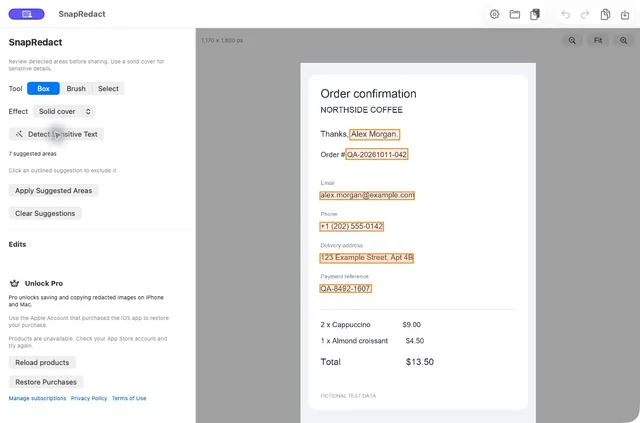
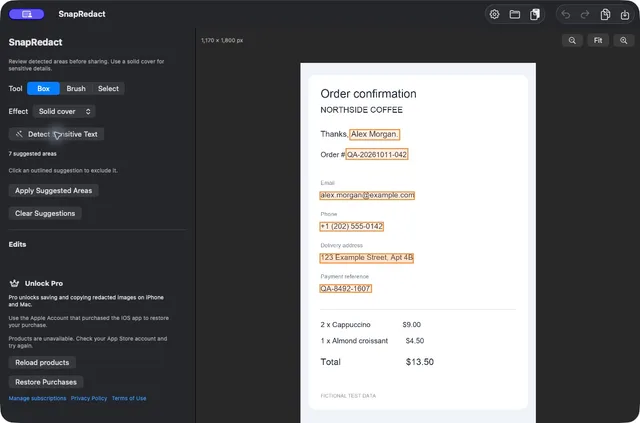
Choose Detect Sensitive Text to look for private text in the image. The results appear as outlined suggestions. Click a suggestion to exclude it, then choose Apply Suggested Areas when you’re happy with the selection.
Automatic detection can miss things. An internal project name, an unusual identifier, or a detail that only means something to you may still need a manual cover. Check the whole image before exporting.
The Box tool handles rectangular areas. Brush covers irregular shapes. Use Select to move or resize a box, and Undo or Redo while you work. You don’t need to start over because one cover landed a little too far to the left.
Pick the cover for the information
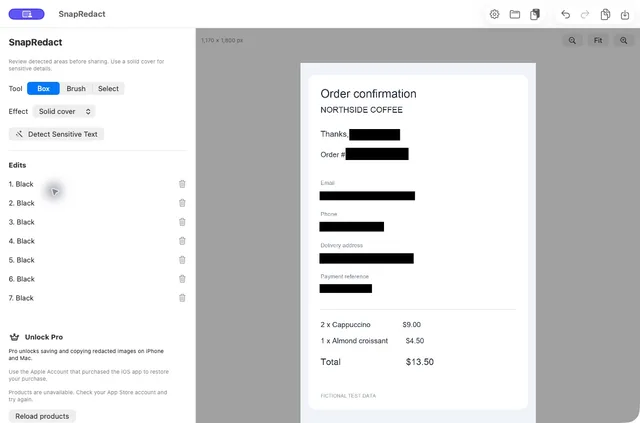
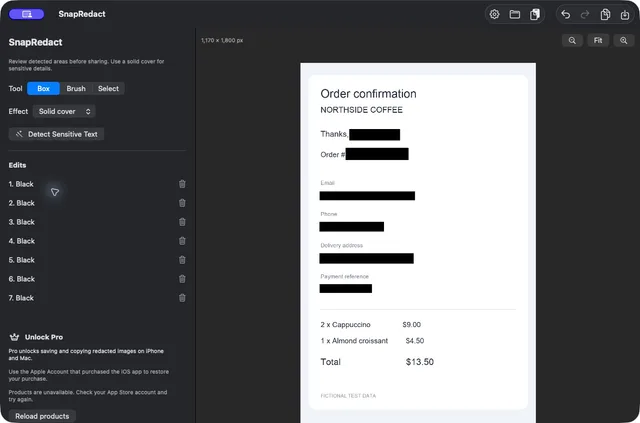
The Mac app offers solid cover, pixelation, and blur. For passwords, account numbers, addresses, or other text that must stay private, use a solid cover and make sure it spans the entire detail. Blur and pixelation can suit less sensitive visual cleanup, but obscured patterns can still give information away.
When you save or copy the result, SnapRedact renders a flattened PNG. Solid-covered pixels in that output are replaced; the original image remains a separate file. Recognition and editing happen locally on your Mac, without uploading the image for processing.
Get the Mac version
You can download SnapRedact from the App Store. Saving and copying redacted images on Mac require Pro. If you already purchased Pro, use Restore Purchases with the Apple Account used for that purchase.
The SnapRedact product page has the feature overview and privacy details. Next time a screenshot needs a few careful covers, you can finish the job right on your Mac.
SnapRedact
Redact screenshots on Mac, iPhone, and iPad with solid covers, blur, pixelation, and on-device detection.

Open in the App Store
Open in the App Store