Why Blurring Screenshots Leaves You Exposed — And How to Truly Redact Private Text
Translucent markup pens and Gaussian blurs can often be reversed with simple exposure adjustments or digital forensics. Learn why solid opaque masks are essential before sharing screenshots.
Screenshots are how we share information today. We snap order confirmations, text message threads, banking receipts, and error logs, then post them to group chats, Slack channels, or public forums like Twitter/X and Reddit.
Before hitting send, most people make a quick effort to conceal sensitive details: a friend’s phone number, a personal shipping address, or a credit card number.
Typically, people grab their phone’s built-in markup tool and drag a black highlighter brush across the text, or use an image editing app to apply a pixelated mosaic or Gaussian blur.
It looks hidden on a small smartphone screen. But from a digital privacy and security standpoint, blurring and semi-transparent pens frequently leave underlying text completely recoverable.
Here is the technical reality behind why blur fails, and how to properly redact sensitive information before you share.
Why Blurs and Highlighters Fail
1. The Translucent Highlighter Mistake
The default pen in many smartphone screenshot markup tools is an optical highlighter, not an opaque marker. It is designed to emulate physical highlighter ink, which intentionally preserves underlying contrast so you can read through it.
Even if you swipe over a phone number three times until it appears solid black on your screen, the image file often still retains subtle variations in pixel luminescence underneath. Anyone who downloads that image and increases brightness, contrast, and exposure sliders in a free photo editor can instantly reveal the text beneath.
2. The Reversibility of Gaussian Blur and Pixelation
A blur does not destroy data; it mathematically distributes it.
Gaussian blurs take each pixel and averages it with its neighbors according to a known mathematical curve. Pixelation groups pixels into larger averaged blocks.
Over the last decade, security researchers and automated tools (such as Depix) have demonstrated that when character fonts, letter spacings, and kerning are predictable — as they are on standard iOS and Android interfaces — averaged pixel blocks can be mapped backwards to reconstruct the original characters.
If you are concealing an address, a social security number, or a bank balance, a mathematical blur is an inadequate security measure.
The Rule of True Redaction: Pure, Destructive Opaque Masks
True redaction is simple: the sensitive pixels must be permanently replaced with solid, uniform color values before the file is encoded.
When an opaque black rectangle is flattened onto an image:
- Every pixel beneath the rectangle is converted to identical
#000000values. - No mathematical gradient, edge hint, or luminescence variation remains.
- No exposure adjustments, forensic filters, or machine learning models can ever reverse the mask because the underlying data has been physically discarded.
How SnapRedact Makes True Privacy Fast
The primary reason people take shortcuts with highlighters is speed: opening a desktop image editor or dedicated security app takes too many taps.
We created SnapRedact to make mathematically secure redaction as fast as casual sharing.
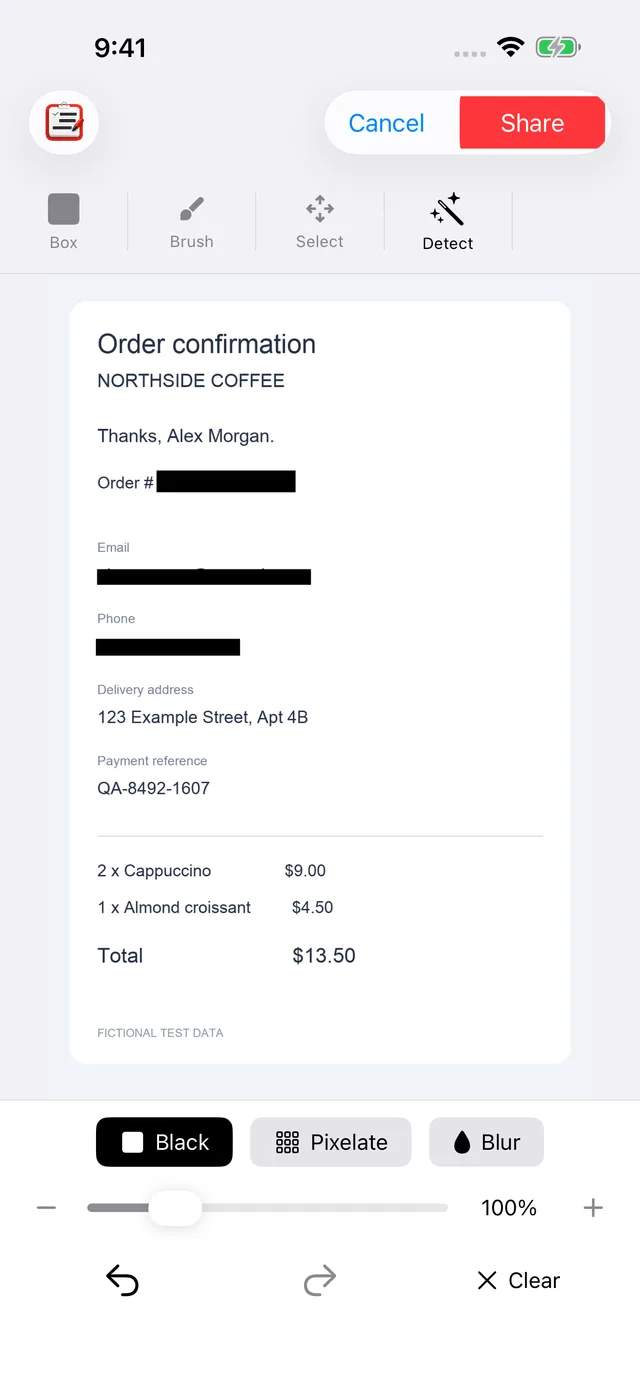
- Direct Native iOS Share Sheet Integration: Take a screenshot in any app (WhatsApp, Safari, Mail), tap Share, and select SnapRedact. You never have to switch apps or save duplicate unredacted images to your photo roll.
- 100% Solid Opaque Bars: SnapRedact renders pure, solid blackout rectangles (with whiteout options for light backgrounds). Original pixel data beneath the mask is completely replaced before export.
- Sensitive Text Auto-Detection: Powered by on-device Apple Vision OCR, SnapRedact can automatically detect phone numbers, email addresses, street addresses, and credit card numbers, letting you tap to redact them in a single gesture.
- Direct Send Back to Chat: Once redacted, tap Done to copy or share the sanitized screenshot directly back into your conversation thread.
100% Local Processing: Zero Cloud Uploads
The irony of many online redaction tools is that you have to upload your unredacted, sensitive screenshot to a remote server for processing — exposing your private information in transit to third-party cloud systems.
SnapRedact executes 100% locally on your iPhone:
- No server infrastructure.
- Zero network requests during image editing.
- No user accounts, analytics trackers, or telemetry.
- Images exist in volatile memory and are purged the moment you close the extension.
Fair Pricing
SnapRedact includes a 3-Day Free Trial with full access to redaction tools, share extension capabilities, and high-resolution exports.
- Annual Subscription: $9.99/year.
- Lifetime License: $19.99 one-time payment.
Never leave your personal data vulnerable to simple photo adjustments. Download SnapRedact on the App Store and redact your screenshots with genuine peace of mind.
SnapRedact
Redact screenshots on Mac, iPhone, and iPad with solid covers, blur, pixelation, and on-device detection.

Open in the App Store
Open in the App Store